
For an apartment connection, begin with the route from the building's common area to the individual flat. Find out who can approve that route and who will provide access on the installation day. Permission for shared spaces and permission inside the flat may involve different people.
Mark the places where the connection must be useful: desks, televisions and other fixed or frequently used devices. Test those points with consistent equipment. A good result beside the router is a starting reference rather than a complete room-coverage assessment.
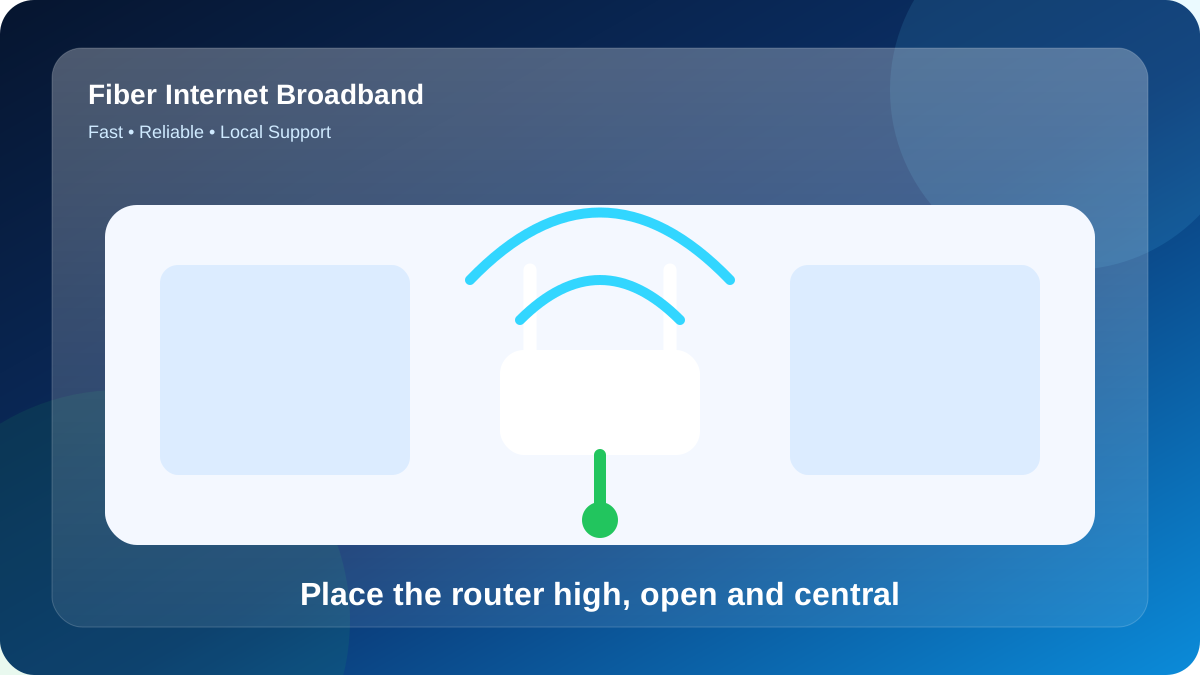
Example: matching speed and coverage
For online learning, identify the sessions that cannot be postponed and the materials that can be downloaded in advance. Live classes, exam portals and large recorded lessons create different demands. Choose a connection around the student's actual routine and other simultaneous household use.
Test the learning device at the desk where it will be used. Check a live session, the required portal and an ordinary download rather than relying on one speed figure. Confirm that the browser, microphone and camera work before attributing a problem to broadband.
Where an assessment platform allows it, prepare required software and files ahead of time. Keep the institution's contact or support process available for platform-specific issues. A provider can investigate the connection, but cannot guarantee the behaviour of an external examination system.
Address-level fiber coverage in Paryavaran Complex
For the stated locality, give the exact building or house number, unit, floor and a useful landmark. Include a map pin if requested, but keep the written address with it. These details help the team review the actual premises instead of making an assumption from the locality name.
Ask for confirmation that the proposed address can be served through an approved route. A nearby connection is useful context, but it is not a guarantee for another floor or building. Wait for the property-specific response before relying on an installation date.
Mention access restrictions early, including locked common areas or permissions required from an owner or manager. State who can approve the work and who can attend the visit. The team can then identify the next practical step instead of booking around missing information.
Settle the equipment and cable-route choices
Before the visit, describe the intended cable path and any areas that require permission. Shared corridors, terraces, shafts and rented interiors can involve different access arrangements. Resolve those practical questions alongside the booking so the technician can assess a usable route.
Keep router placement separate from the optical entry decision. If the best wireless position is elsewhere, ask what cabling or equipment arrangement is practical. Do not hide the router in a closed cabinet merely to keep it beside the incoming fibre.
Contact Fiber Internet on 9990881098 with the account reference or exact installation address and a concise description of the issue. Include when it began and whether it affects one device, one room or the whole connection. Those facts help determine the next check.
Fiber plans from ₹499 explained
Request a quotation that shows the service period, subscription, applicable taxes and any equipment or installation payment separately. This is the clearest way to understand what is due now and what will recur later. Confirm the final amount before treating a displayed monthly price as a complete order.
| Speed | Price | Typical fit | Suitable uses |
|---|---|---|---|
| 100 Mbps | ₹499/month | 1–3 regular users | Classes, browsing, HD streaming, office apps |
| 200 Mbps | ₹699/month | 3–6 regular users | Multiple OTT streams, WFH, downloads, CCTV |
| 300 Mbps | ₹799/month | Heavy multi-device home | 4K screens, gaming, cloud backup, large files |
Ask whether the displayed figure is the normal renewal rate or part of an offer. If an introductory benefit applies, record its duration and eligibility conditions. Keep the written quote so a later renewal can be compared with what was agreed at the start.
The published 200 Mbps tier is ₹699 per month. Its extra capacity may be useful when several activities overlap, but it does not correct a weak wireless path by itself. Compare the busy-period workload and obtain the complete first-payment and renewal terms.
The website publishes monthly reference prices of ₹499 for 100 Mbps, ₹699 for 200 Mbps, ₹799 for 300 Mbps and ₹1,699 for 500 Mbps. Confirm the current order terms, billing period and any additional payable items with Fiber Internet before making payment.
Improve Wi-Fi coverage without buying unnecessary speed
When a distant room is weak, compare an alternative router position before purchasing equipment. Use the same device and task for each trial. If the problem remains, discuss a planned access point or mesh arrangement and how it will connect back to the main network.
Choose the router position around where people use the connection, rather than automatically placing it at the nearest entry point. Doors, walls and the shape of the flat can affect Wi-Fi. Identify the work desk, television and other important locations before the equipment is fixed in place.
For more than one floor, assess each working level independently. A strong connection on one floor does not establish the result through a slab or stairwell. The proposed network should be tested at the actual use points, not accepted only on a coverage claim.
Five steps to install broadband
Check the power point and the space for the supplied equipment. Avoid deciding the router position only after the fibre has been fixed. The installation should support the rooms and devices you intend to use, with any additional cabling discussed in advance.
- Provide the complete building or house number and floor.
- Choose the service tier: Choose 100, 200 or 300 Mbps using the number of people online together, not only the lowest price or largest headline speed.
- Record when the problem started and which services fail.
- Mark the rooms where a reliable connection is needed.
- Test the usual device at its normal working position.
A shared building does not necessarily require a shared private network. Decide whether the order is for one residence or several independently managed units. Discuss equipment, account responsibilities and access control before extending connectivity beyond the original household.
A page-specific Wi-Fi design for Deepika Apartment
After activation, test the flat using the actual devices and rooms that matter. If one room performs poorly while a wired connection is healthy, investigate the indoor wireless arrangement. Additional access points should be planned around the property rather than selected purely by advertised coverage figures.
Make a short list of activities that are genuinely active together. Live calls, streams, large transfers and cloud synchronisation affect demand differently from devices that are simply connected. Use the busiest normal period as the basis for the discussion.
Include upload-heavy work in the brief. Sending video, backing up files and remote camera access may matter even when ordinary browsing is comfortable. Ask how the proposed service fits those tasks instead of evaluating it solely by its download headline.
Identify the rooms and devices that must work reliably at specific times. A household may prefer dependable connectivity at two work desks over impressive results beside the router. The local network arrangement should reflect those priorities.
Compare what happens when competing transfers stop. If the essential task improves, shared capacity or local traffic management may be relevant. If the same single room remains weak, investigate its wireless path before paying for more incoming bandwidth.
Leave room for realistic growth without treating every possible future device as an immediate requirement. Ask how upgrades are handled and what equipment limitations might matter later. The initial order should solve today's workload with a clear route for change.
| Zone | Purpose | Recommended check | Decision |
|---|---|---|---|
| shop counter | Main work zone | Confirm open placement | Review during peak time |
| front bedroom | Second important room | Check video-call stability | Retest after repositioning |
| upper-floor room | Coverage challenge | Consider Ethernet-fed access point | Review during peak time |
| balcony workspace | Final room test | Use 2.4 GHz for low-demand distant devices at Deepika Apartment | Review during peak time |
Build a practical plan for your own premises
Draw a simple plan of your own premises and mark the rooms in active use. Add the fibre entry point, power sockets and suitable cable routes. This creates a practical design brief without assuming that a generic example matches the property.
List the devices used during the busiest period and what they are doing. Distinguish a device that is merely connected from one making a call, streaming or transferring files. Use your own routine rather than an invented device count.
Mark the work points where interruptions would matter most. Give those locations priority when deciding where to test or install a wired connection. A coverage plan is more useful when it identifies a required result for a specific place.
| Example load | Main activity | Priority | Planning action |
|---|---|---|---|
| 1 fixed screen | software updates | High | Prefer Ethernet where possible |
| 7 mobile/laptop devices | multiplayer gaming | Shared | Distribute across both Wi-Fi bands |
| 2 live calls | cloud backup | Upload-sensitive | Test ping and upload |
| 6 total active clients | digital learning sessions | Peak-hour total | Compare 100/200/300 Mbps fit |
Diagnosing line speed versus Wi-Fi speed
Describe equipment lights as you see them rather than assigning a cause from memory. If support requests a restart, follow the normal equipment procedure. Do not factory-reset the router or disturb fibre connectors unless the responsible technician explicitly guides that action.
Ask for the complaint reference and what happens next. Keep the time of the report, the tests already performed and any promised update together. If the symptom changes, add that new observation instead of starting the description again from scratch.
Separate a service enquiry from a device-repair request. Explain whether you need a new connection, coverage assistance or diagnosis of particular hardware. That makes it easier to agree the scope and any applicable charge before work begins.
A fault-isolation sequence for this page
When escalating a recurring problem, provide a short sequence of incidents with comparable observations. Mention any wired result and whether all services failed together. A clear history gives the next technician more to work with than an unsupported conclusion that the plan is too slow.
- State whether one device, one room or all devices are affected.
- Describe the equipment lights without changing configuration.
- Note the tests already completed and their conditions.
- Keep the complaint reference and agreed next action.
- Repeat the original failing task after a proposed fix.
After a proposed fix, repeat the original failing task and the same comparison test. Confirm whether the symptom has disappeared, improved or merely changed. Keep the fault open through the agreed process if the relevant problem remains.
Prevent avoidable Wi-Fi and fiber problems
Where suitable fixed devices support Ethernet, discuss a wired path. It can remove the wireless hop from troubleshooting and reserve Wi-Fi for devices that need mobility. It does not change the subscribed bandwidth or eliminate limits elsewhere in the connection.
Use the published tiers as options to evaluate, not as labels for a fixed number of people. Different households with the same number of residents can have very different activity patterns. Explain the routine and request a suitable recommendation.
Begin with a simple baseline: note the device, time, connection method and whether other heavy transfers are active. Repeat the important task under the same conditions before changing anything. Consistent observations are more useful than a collection of unrelated speed figures.
Final connection checklist
Agree how work outside the standard scope will be handled. This may include an alternative route, added equipment or finishing work that is not part of ordinary cable fixing. A clear explanation and approval should come before an unexpected additional charge.
- Ask for a line-by-line first-payment quotation.
- Compare a near-router result with the difficult room.
- Agree where the fibre will enter and terminate.
- Confirm permission for the common cable route.
- Compare offers over the same billing period.
- Record when the problem started and which services fail.
- Identify the flat and floor unambiguously.
Check fiber availability for Deepika Apartment
If you are enquiring near a landmark, add the approach road and exact premises. A broad destination can cover several possible entrances or properties. The purpose of the landmark is to assist the address check, not to replace it.
WhatsApp 9990881098FAQs about Deepika Apartment Broadband
Can one router cover a multi-floor home?
A faster incoming plan does not automatically improve a weak wireless path through rooms or floors. Test near the router and at the affected position with the same device. Placement, a suitable wired access point or a planned mesh setup may be the relevant change.
Does a faster plan improve Wi-Fi range?
Choose the router position around where people use the connection, rather than automatically placing it at the nearest entry point. Doors, walls and the shape of the flat can affect Wi-Fi. Identify the work desk, television and other important locations before the equipment is fixed in place.
What details should I confirm before paying?
Service must be confirmed for the exact building, unit and floor. Send Fiber Internet the full address, a landmark and any access restrictions. A locality page or a nearby connection is not a confirmed installation for another property.
Is local support available for Paryavaran Complex?
Service must be confirmed for the exact building, unit and floor. Send Fiber Internet the full address, a landmark and any access restrictions. A locality page or a nearby connection is not a confirmed installation for another property.
Which broadband speed is suitable for Deepika Apartment?
Choose around the activities that run together and the rooms that need reliable access. Then check upload requirements, device capability and the complete price. A larger headline Mbps figure is not a substitute for solving weak Wi-Fi or a device-specific fault.
Decide from the checks you have made
Make the next decision from the evidence already collected. If the address has not been confirmed, resolve feasibility first. If the wired connection is healthy but one room struggles, review coverage. If simultaneous demand is the constraint, discuss capacity with the provider.