
On this page
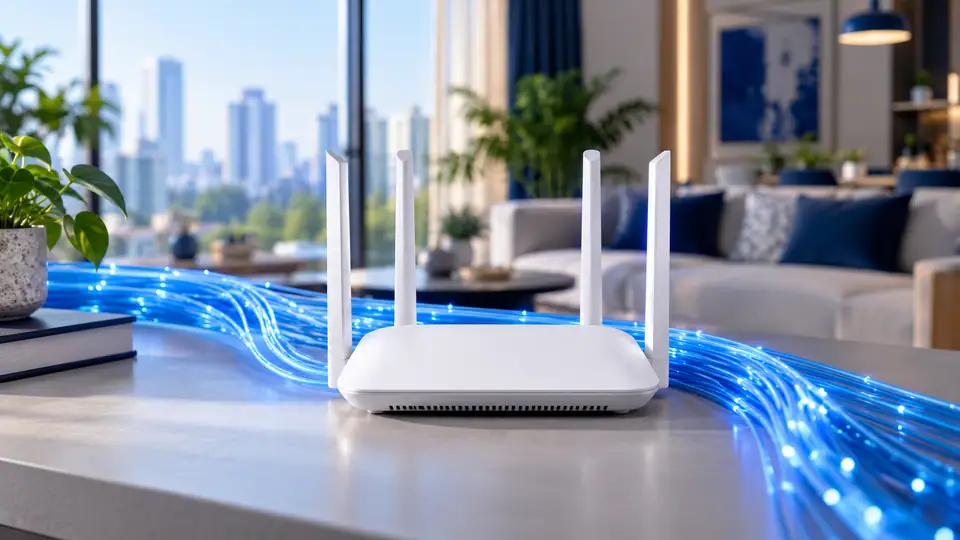
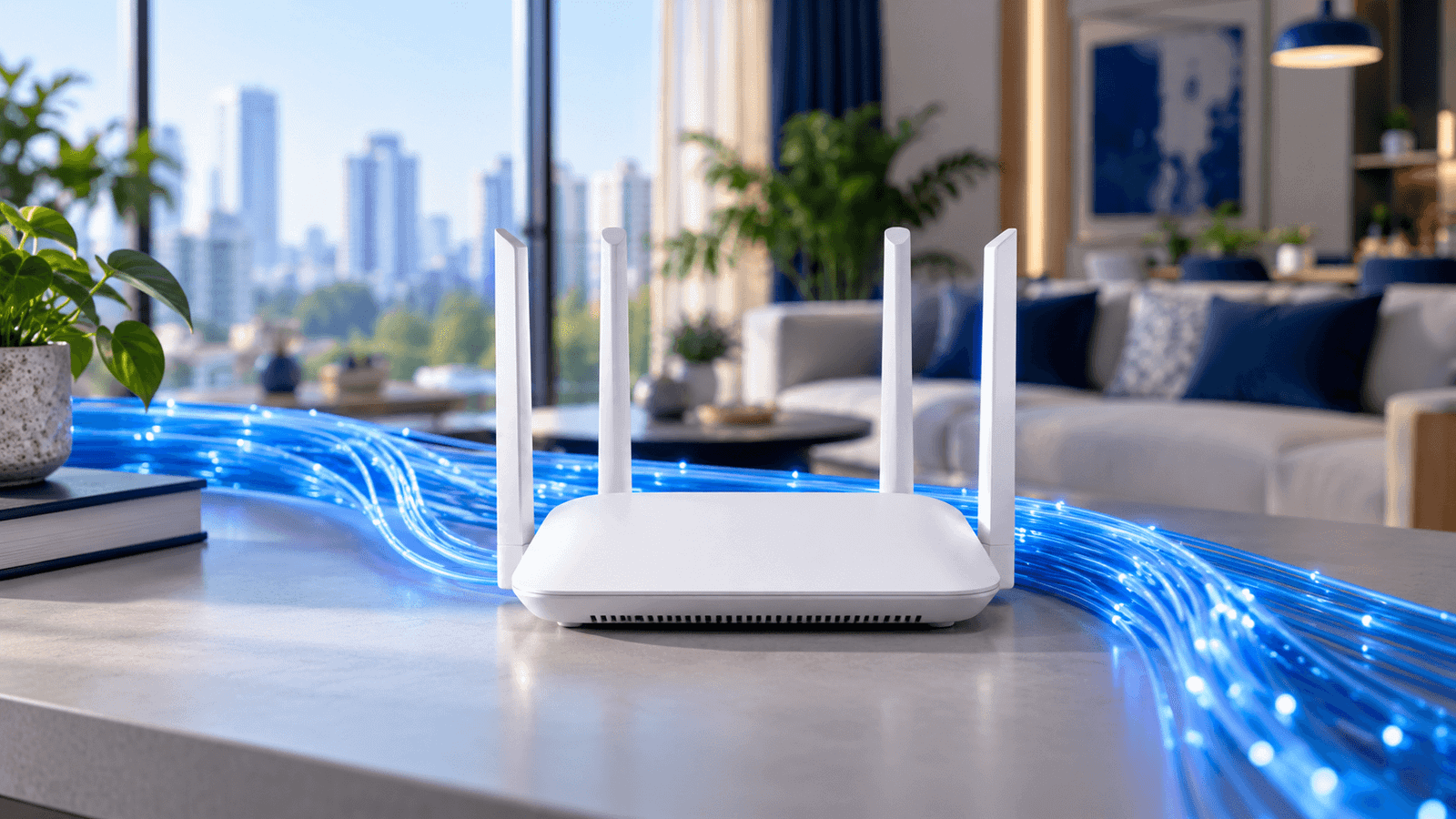
Wi-Fi is the last part of the connection between the router and a device. A healthy fibre service can still feel slow if that wireless path is weak or congested. Compare a result close to the router with the room where the problem occurs before judging the incoming line.
Contact Fiber Internet on 9990881098 with the account reference or exact installation address and a concise description of the issue. Include when it began and whether it affects one device, one room or the whole connection. Those facts help determine the next check.
Published monthly plan references
Use each wireless band deliberately
- Mark the rooms where a reliable connection is needed.
- Test the usual device at its normal working position.
- Compare a near-router result with the difficult room.
Mark the places where the connection must be useful: desks, televisions and other fixed or frequently used devices. Test those points with consistent equipment. A good result beside the router is a starting reference rather than a complete room-coverage assessment.
The laptop becomes slow after warming up
If only one computer or device has trouble, compare it with another device on the same connection before assuming the line is faulty. Note whether the issue involves starting up, joining Wi-Fi, browsing or running a particular application. Those symptoms point to different kinds of assessment.
For repair work, request a description of the diagnosis, proposed labour and parts before approving the job. Ask about the expected turnaround and any stated repair warranty. Keep the device's important files backed up where possible and retain the job record.
Downloads finish but installation takes a long time
Before the visit, describe the intended cable path and any areas that require permission. Shared corridors, terraces, shafts and rented interiors can involve different access arrangements. Resolve those practical questions alongside the booking so the technician can assess a usable route.
Check the power point and the space for the supplied equipment. Avoid deciding the router position only after the fibre has been fixed. The installation should support the rooms and devices you intend to use, with any additional cabling discussed in advance.
Give support a useful starting record
| Record | What to include |
|---|---|
| Service location | Indra Enclave: complete building, lane, floor, unit and map pin. Mention permission or access restrictions. |
| Main decision | Use each wireless band deliberately. Check which band the affected device is actually using. |
| Device evidence | Describe fan noise, heat, shutdowns and whether offline applications slow down too. |
| Second check | Note the application, free disk space and whether other installations are running. |
| Requested work | Cooling inspection and internal cleaning assessment; SSD and system performance assessment. Confirm the quotation and what is included before authorising work. |
Computer and laptop services in Indra Enclave
Network troubleshooting and hardware repair should have clear boundaries. A provider may investigate the connection while a technician assesses the computer, router or other customer equipment. Ask who is responsible for each part instead of accepting an unexplained replacement recommendation.
- Hardware diagnosis and repairs
- Desktop and laptop fault diagnosis; screen, keyboard, battery, charging, power and motherboard assessment. Repair options depend on the model, fault and parts availability.
- Software and operating systems
- Operating-system installation or repair, drivers, application setup, updates and malware assessment. Required software licences remain part of the agreed scope.
- Performance and upgrades
- RAM and SSD compatibility checks, slow-system diagnosis, cooling inspection, cleaning and upgrade installation after approval.
- Files and data
- Backup setup, migration and data recovery assessment. Recovery is not guaranteed; agree on privacy and data-handling requirements before work.
- Networking and peripherals
- Router and WiFi setup, LAN troubleshooting, computer network adapters, printers, scanners, webcams and other supported peripherals.
- Ongoing maintenance
- Home and office maintenance enquiries, periodic servicing and multi-device support. Request the visit scope, service arrangement and quotation before booking.
Protect account access during the enquiry. Describe the symptoms and device model without sending personal passwords or unnecessary private files. If access is required for an agreed repair, discuss an appropriate process with the technician and keep the scope of the work clear.
Clarify the scope of the service
What is the first check for this guide?
Keep the router in an open, reasonably central position where practical. Metal enclosures, crowded electronics and an awkward corner can work against coverage. Test a proposed position with the same device before making cable fixing or furniture placement permanent.
Should I book broadband support or computer service?
Call or WhatsApp 9990881098. For a new order, provide the exact address, floor and intended use; for a fault, add the account reference, affected devices and time of the problem. Ask for the appropriate next step rather than sending passwords.
How do I request computer or laptop service in Indra Enclave?
First establish whether the problem affects only the device or the whole connection. For a repair, agree the diagnosis, parts, labour and any warranty before work starts. Back up important files where possible and avoid sending passwords in the initial enquiry.
Do you also offer 1 Gbps connectivity?
A 1 Gbps requirement needs a separate business or leased-line enquiry and an address-specific quotation. The standard home-broadband table lists plans up to 500 Mbps. Availability, equipment and service terms must be confirmed for the proposed business connection.
Discuss the setup you actually need
Agree how work outside the standard scope will be handled. This may include an alternative route, added equipment or finishing work that is not part of ordinary cable fixing. A clear explanation and approval should come before an unexpected additional charge.
Keep the router in an open, reasonably central position where practical. Metal enclosures, crowded electronics and an awkward corner can work against coverage. Test a proposed position with the same device before making cable fixing or furniture placement permanent. Related information: Call 9990881098 Call 9990881098 Send your service enquiry on WhatsApp
Decide from the checks you have made
Make the next decision from the evidence already collected. If the address has not been confirmed, resolve feasibility first. If the wired connection is healthy but one room struggles, review coverage. If simultaneous demand is the constraint, discuss capacity with the provider.