
For an apartment connection, begin with the route from the building's common area to the individual flat. Find out who can approve that route and who will provide access on the installation day. Permission for shared spaces and permission inside the flat may involve different people.
Mark the places where the connection must be useful: desks, televisions and other fixed or frequently used devices. Test those points with consistent equipment. A good result beside the router is a starting reference rather than a complete room-coverage assessment.


What makes broadband planning in Paryavaran Complex different
Before the visit, describe the intended cable path and any areas that require permission. Shared corridors, terraces, shafts and rented interiors can involve different access arrangements. Resolve those practical questions alongside the booking so the technician can assess a usable route.
Keep router placement separate from the optical entry decision. If the best wireless position is elsewhere, ask what cabling or equipment arrangement is practical. Do not hide the router in a closed cabinet merely to keep it beside the incoming fibre.
Check the power point and the space for the supplied equipment. Avoid deciding the router position only after the fibre has been fixed. The installation should support the rooms and devices you intend to use, with any additional cabling discussed in advance.
100, 200 or 300 Mbps: choosing the right plan
Choose a speed tier by looking at overlapping activity rather than the number of devices registered on the router. A sleeping tablet contributes little traffic; a computer uploading a large project while others stream can change the experience. Describe the busiest realistic combination before choosing capacity.
| Speed | Price | Typical fit | Suitable uses |
|---|---|---|---|
| 100 Mbps | ₹499/month | Budget-focused connection | Everyday apps on a few devices |
| 200 Mbps | ₹699/month | Balanced household choice | Concurrent streaming and meetings |
| 300 Mbps | ₹799/month | Maximum headroom | Busy homes with many active devices |
The published speed is a useful planning reference, but it is not a promise that every device will achieve that figure over Wi-Fi. Router capability, wireless conditions, device hardware and the service being accessed can all affect an individual result. Use a capable wired device when checking the connection itself.
The published 200 Mbps tier is ₹699 per month. Its extra capacity may be useful when several activities overlap, but it does not correct a weak wireless path by itself. Compare the busy-period workload and obtain the complete first-payment and renewal terms.
The published 300 Mbps tier is ₹799 per month. Assess it for heavier simultaneous transfers and household use while checking the router, cabling and devices. The plan’s headline capacity is not a guarantee of the result at every wireless device or remote service.
A setup designed for this type of user
Agree how work outside the standard scope will be handled. This may include an alternative route, added equipment or finishing work that is not part of ordinary cable fixing. A clear explanation and approval should come before an unexpected additional charge.
Request a quotation that shows the service period, subscription, applicable taxes and any equipment or installation payment separately. This is the clearest way to understand what is due now and what will recur later. Confirm the final amount before treating a displayed monthly price as a complete order.
When a distant room is weak, compare an alternative router position before purchasing equipment. Use the same device and task for each trial. If the problem remains, discuss a planned access point or mesh arrangement and how it will connect back to the main network.
How a new connection is arranged
An installation booking should start with a route the technician can assess. Supply the building or house number, floor, entry restrictions and a reliable landmark. A map pin is useful alongside those details, but it does not describe how a cable can safely reach the intended room.
- Provide the exact address, floor and access instructions.
- Agree on the cable entry and equipment positions.
- Decide the required capacity: Choose 100, 200 or 300 Mbps using the number of concurrent household members, not only the lowest price or largest headline speed.
- Obtain approval for work in shared or rented spaces.
- Test the intended rooms before completing handover.
Decide where the fibre will terminate and where the router should operate. Those positions need not be identical, and the most convenient cable entry is not always the best place for Wi-Fi. Discuss the cable path, power supply and any additional networking work before the visit.
Improve Wi-Fi coverage without buying unnecessary speed
Contact Fiber Internet on 9990881098 with the account reference or exact installation address and a concise description of the issue. Include when it began and whether it affects one device, one room or the whole connection. Those facts help determine the next check.
For more than one floor, assess each working level independently. A strong connection on one floor does not establish the result through a slab or stairwell. The proposed network should be tested at the actual use points, not accepted only on a coverage claim.
Describe equipment lights as you see them rather than assigning a cause from memory. If support requests a restart, follow the normal equipment procedure. Do not factory-reset the router or disturb fibre connectors unless the responsible technician explicitly guides that action.
A fair way to test the connection
Begin with a simple baseline: note the device, time, connection method and whether other heavy transfers are active. Repeat the important task under the same conditions before changing anything. Consistent observations are more useful than a collection of unrelated speed figures.
If practical, test with a capable device over Ethernet and compare it with the normal Wi-Fi position. A difference between the two helps identify the part of the connection worth examining next. One result alone does not prove a fault in the provider's line.
Repeat the task that originally caused difficulty. A successful speed test does not by itself confirm that a work VPN, game or video meeting behaves correctly. Record which applications work and which fail so the next investigation stays focused.
Plan the network for the busiest hour
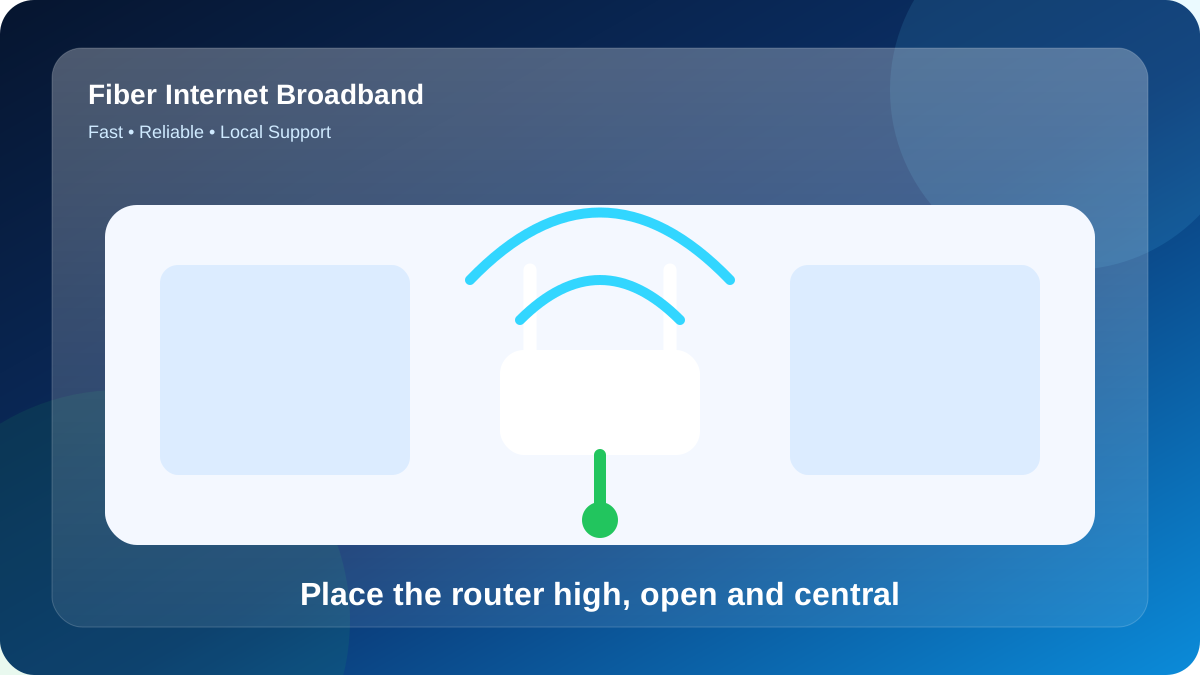
Choose the router position around where people use the connection, rather than automatically placing it at the nearest entry point. Doors, walls and the shape of the flat can affect Wi-Fi. Identify the work desk, television and other important locations before the equipment is fixed in place.
Where suitable fixed devices support Ethernet, discuss a wired path. It can remove the wireless hop from troubleshooting and reserve Wi-Fi for devices that need mobility. It does not change the subscribed bandwidth or eliminate limits elsewhere in the connection.
Check the band and device capability during a wireless comparison. A result from one phone or band may not describe an older laptop or a television in a different position. Keep the test conditions with the result so later comparisons are meaningful.
Network load model for this Paryavaran Complex address
For the stated locality, give the exact building or house number, unit, floor and a useful landmark. Include a map pin if requested, but keep the written address with it. These details help the team review the actual premises instead of making an assumption from the locality name.
Ask for confirmation that the proposed address can be served through an approved route. A nearby connection is useful context, but it is not a guarantee for another floor or building. Wait for the property-specific response before relying on an installation date.
Mention access restrictions early, including locked common areas or permissions required from an owner or manager. State who can approve the work and who can attend the visit. The team can then identify the next practical step instead of booking around missing information.
If you are enquiring near a landmark, add the approach road and exact premises. A broad destination can cover several possible entrances or properties. The purpose of the landmark is to assist the address check, not to replace it.
Tell the provider if the address, floor or intended cable entry changes after the first discussion. The earlier feasibility response may no longer describe the proposed installation. Keep the revised arrangement with the quotation and appointment details.
Separate an availability enquiry from a confirmed order. First obtain the feasibility response; then agree the plan, equipment and payable terms. This avoids treating a website area listing as a promise that every property can be connected immediately.
| Zone | Purpose | Recommended check | Decision |
|---|---|---|---|
| front bedroom | Close-range baseline | Confirm open placement | Review during peak time |
| stair landing | Second important room | Test both Wi-Fi bands | Extend Ganpati Apartment with Ethernet-backed Wi-Fi if needed |
| living room | Likely weak zone | Do not upgrade speed first | Review during peak time |
| rear bedroom | Edge of coverage | Place light-use Ganpati Apartment devices on 2.4 GHz | Retest after repositioning |
Build a practical plan for your own premises
Draw a simple plan of your own premises and mark the rooms in active use. Add the fibre entry point, power sockets and suitable cable routes. This creates a practical design brief without assuming that a generic example matches the property.
List the devices used during the busiest period and what they are doing. Distinguish a device that is merely connected from one making a call, streaming or transferring files. Use your own routine rather than an invented device count.
Mark the work points where interruptions would matter most. Give those locations priority when deciding where to test or install a wired connection. A coverage plan is more useful when it identifies a required result for a specific place.
| Example load | Main activity | Priority | Planning action |
|---|---|---|---|
| 1 fixed screen | large file transfer | High | Avoid weak repeater paths |
| 6 mobile/laptop devices | software updates | Shared | Use guest access for visitors |
| 3 live calls | web-based lessons | High | Use the nearest access point |
| 9 total active clients | OTT streaming | Peak-hour total | Retest at the busiest hour |
Troubleshooting playbook for Ganpati Apartment
A shared building does not necessarily require a shared private network. Decide whether the order is for one residence or several independently managed units. Discuss equipment, account responsibilities and access control before extending connectivity beyond the original household.
- Confirm permission for the common cable route.
- Identify the flat and floor unambiguously.
- Choose equipment positions around the rooms in use.
- Clarify whether the service is for one household or multiple units.
- Confirm permission for the common cable route.
After activation, test the flat using the actual devices and rooms that matter. If one room performs poorly while a wired connection is healthy, investigate the indoor wireless arrangement. Additional access points should be planned around the property rather than selected purely by advertised coverage figures.
Keep the network secure and easy to support
Ask for the complaint reference and what happens next. Keep the time of the report, the tests already performed and any promised update together. If the symptom changes, add that new observation instead of starting the description again from scratch.
Separate a service enquiry from a device-repair request. Explain whether you need a new connection, coverage assistance or diagnosis of particular hardware. That makes it easier to agree the scope and any applicable charge before work begins.
When escalating a recurring problem, provide a short sequence of incidents with comparable observations. Mention any wired result and whether all services failed together. A clear history gives the next technician more to work with than an unsupported conclusion that the plan is too slow.
What to verify before making payment
Ask whether the displayed figure is the normal renewal rate or part of an offer. If an introductory benefit applies, record its duration and eligibility conditions. Keep the written quote so a later renewal can be compared with what was agreed at the start.
- Ask for a line-by-line first-payment quotation.
- Compare offers over the same billing period.
- Confirm applicable taxes and the normal renewal charge.
- Keep refundable security separate from subscription expenditure.
- Approve any additional work before it is carried out.
- Retain the quote and payment acknowledgement.
- Ask for a line-by-line first-payment quotation.
Check fiber availability for Ganpati Apartment
A locality name helps identify an enquiry, but the installation decision concerns one property. Send the complete address in the stated locality, including the unit or floor and a nearby landmark. The provider must still confirm the available route and service feasibility for that exact location.
WhatsApp 9990881098FAQs about Ganpati Apartment Broadband
What details should I confirm before paying?
Service must be confirmed for the exact building, unit and floor. Send Fiber Internet the full address, a landmark and any access restrictions. A locality page or a nearby connection is not a confirmed installation for another property.
How should I test broadband speed after installation?
Confirm the approved cable route, access permission, equipment position and included work before the visit. Ask about any extra work separately. At handover, test the important rooms and keep the account, equipment and payment records.
Is ganpati apartment broadband available at every address in Paryavaran Complex?
Service must be confirmed for the exact building, unit and floor. Send Fiber Internet the full address, a landmark and any access restrictions. A locality page or a nearby connection is not a confirmed installation for another property.
Does a faster plan improve Wi-Fi range?
Choose the router position around where people use the connection, rather than automatically placing it at the nearest entry point. Doors, walls and the shape of the flat can affect Wi-Fi. Identify the work desk, television and other important locations before the equipment is fixed in place.
Is local support available for Paryavaran Complex?
Service must be confirmed for the exact building, unit and floor. Send Fiber Internet the full address, a landmark and any access restrictions. A locality page or a nearby connection is not a confirmed installation for another property.
Decide from the checks you have made
Make the next decision from the evidence already collected. If the address has not been confirmed, resolve feasibility first. If the wired connection is healthy but one room struggles, review coverage. If simultaneous demand is the constraint, discuss capacity with the provider.