
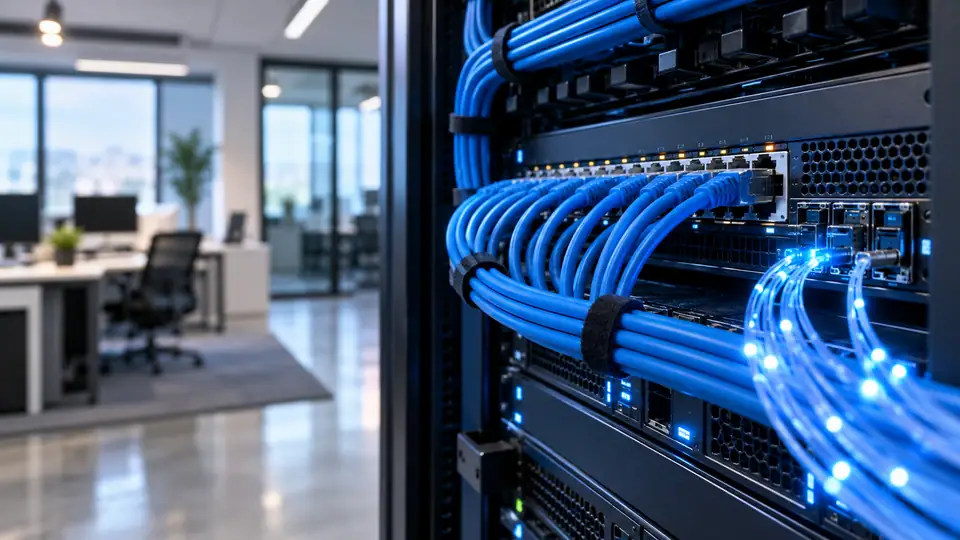
Decide where the fibre will terminate and where the router should operate. Those positions need not be identical, and the most convenient cable entry is not always the best place for Wi-Fi. Discuss the cable path, power supply and any additional networking work before the visit.
Before the visit, describe the intended cable path and any areas that require permission. Shared corridors, terraces, shafts and rented interiors can involve different access arrangements. Resolve those practical questions alongside the booking so the technician can assess a usable route.
Define the work that must remain usable
Begin with a simple baseline: note the device, time, connection method and whether other heavy transfers are active. Repeat the important task under the same conditions before changing anything. Consistent observations are more useful than a collection of unrelated speed figures.
If practical, test with a capable device over Ethernet and compare it with the normal Wi-Fi position. A difference between the two helps identify the part of the connection worth examining next. One result alone does not prove a fault in the provider's line.
Treat the indoor network as a separate system
Mark the places where the connection must be useful: desks, televisions and other fixed or frequently used devices. Test those points with consistent equipment. A good result beside the router is a starting reference rather than a complete room-coverage assessment.
Keep router placement separate from the optical entry decision. If the best wireless position is elsewhere, ask what cabling or equipment arrangement is practical. Do not hide the router in a closed cabinet merely to keep it beside the incoming fibre.
1. Place office access points around desks and meeting areas
When a distant room is weak, compare an alternative router position before purchasing equipment. Use the same device and task for each trial. If the problem remains, discuss a planned access point or mesh arrangement and how it will connect back to the main network.
For more than one floor, assess each working level independently. A strong connection on one floor does not establish the result through a slab or stairwell. The proposed network should be tested at the actual use points, not accepted only on a coverage claim.
2. Write an office handover checklist for the installer
Repeat the task that originally caused difficulty. A successful speed test does not by itself confirm that a work VPN, game or video meeting behaves correctly. Record which applications work and which fail so the next investigation stays focused.
Try another suitable device when the problem seems confined to one laptop, phone or television. Keep the location and network method comparable. If the second device behaves differently, examine device or application settings before altering the entire household network.
3. Reserve room for growth in a small-workspace network
Where suitable fixed devices support Ethernet, discuss a wired path. It can remove the wireless hop from troubleshooting and reserve Wi-Fi for devices that need mobility. It does not change the subscribed bandwidth or eliminate limits elsewhere in the connection.
Check the band and device capability during a wireless comparison. A result from one phone or band may not describe an older laptop or a television in a different position. Keep the test conditions with the result so later comparisons are meaningful.
4. Prepare a realistic backup connection for working hours
Contact Fiber Internet on 9990881098 with the account reference or exact installation address and a concise description of the issue. Include when it began and whether it affects one device, one room or the whole connection. Those facts help determine the next check.
Make the next decision from the evidence already collected. If the address has not been confirmed, resolve feasibility first. If the wired connection is healthy but one room struggles, review coverage. If simultaneous demand is the constraint, discuss capacity with the provider.
5. Separate a home workspace from entertainment traffic
Start with the business processes that depend on connectivity: billing, calls, cloud applications, cameras or customer access. Identify which must keep working together and which can wait. This gives the provider a concrete service brief rather than a generic request for office Wi-Fi.
Plan fixed desks and devices separately from guest access. A suitable wired path can simplify troubleshooting for important equipment, while a guest network can separate visitor use where the equipment supports it. Agree who will manage the router and maintain access credentials.
6. Plan wired ports for a compact office
Read support and commercial terms alongside bandwidth. Ask how a fault is logged, what information the provider needs and which response commitments are actually included. If the business requires contractual service levels or special network features, request an appropriate quotation rather than assuming a residential plan includes them.
Keep the network understandable for the people responsible for it. Record the equipment, cabling, account reference and escalation contact without circulating passwords unnecessarily. If an outage would stop trading, discuss a tested fallback and the separate power requirements.
7. Plan clinic appointment access during a network fault
Describe equipment lights as you see them rather than assigning a cause from memory. If support requests a restart, follow the normal equipment procedure. Do not factory-reset the router or disturb fibre connectors unless the responsible technician explicitly guides that action.
Ask for the complaint reference and what happens next. Keep the time of the report, the tests already performed and any promised update together. If the symptom changes, add that new observation instead of starting the description again from scratch.
8. Resolve installation WiFi issues before adding equipment
Check the power point and the space for the supplied equipment. Avoid deciding the router position only after the fibre has been fixed. The installation should support the rooms and devices you intend to use, with any additional cabling discussed in advance.
Agree how work outside the standard scope will be handled. This may include an alternative route, added equipment or finishing work that is not part of ordinary cable fixing. A clear explanation and approval should come before an unexpected additional charge.
9. Prepare a shop for an internet interruption
A shop's broadband brief should distinguish operational devices from customer use. List billing terminals, stock applications, cameras and any guest Wi-Fi. Explain which tasks must continue during the busiest trading period so the connection and local network can be planned around them.
Place network equipment where it can be maintained without obstructing staff or being easily disturbed by customers. Consider the counter, storage area and other working locations when testing coverage. A speed test at the entrance alone does not establish that the billing position has a reliable path.
10. Evaluate repair commitments for a business renewal
Request a quotation that shows the service period, subscription, applicable taxes and any equipment or installation payment separately. This is the clearest way to understand what is due now and what will recur later. Confirm the final amount before treating a displayed monthly price as a complete order.
Ask whether the displayed figure is the normal renewal rate or part of an offer. If an introductory benefit applies, record its duration and eligibility conditions. Keep the written quote so a later renewal can be compared with what was agreed at the start.
11. Choose between 2.4 GHz and 5 GHz using a room test
Wi-Fi is the last part of the connection between the router and a device. A healthy fibre service can still feel slow if that wireless path is weak or congested. Compare a result close to the router with the room where the problem occurs before judging the incoming line.
Keep the router in an open, reasonably central position where practical. Metal enclosures, crowded electronics and an awkward corner can work against coverage. Test a proposed position with the same device before making cable fixing or furniture placement permanent.
12. Count active tasks instead of connected devices
Arrange permission for access to shared passages, shafts or terraces if the proposed route needs them. Clarify responsibility for drilling, concealed wiring and work outside the standard installation scope. The installer should be able to explain any additional charge before that work begins.
Keep the final choice tied to the actual workload, installation route and written commercial terms. A clear quotation and an agreed test are more useful than an unsupported superlative. Save the information needed to check whether the delivered service matches the order.
13. Check the Ethernet link speed on a 200 Mbps plan
Choose a speed tier by looking at overlapping activity rather than the number of devices registered on the router. A sleeping tablet contributes little traffic; a computer uploading a large project while others stream can change the experience. Describe the busiest realistic combination before choosing capacity.
The published speed is a useful planning reference, but it is not a promise that every device will achieve that figure over Wi-Fi. Router capability, wireless conditions, device hardware and the service being accessed can all affect an individual result. Use a capable wired device when checking the connection itself.
14. Choose a startup connection around its critical application
At handover, check that the account is active, the equipment is identified and the intended devices can connect. Test the important rooms as well as a point close to the router. Keep the payment record and support contact with any equipment-return conditions.
Before committing, make sure the proposed solution addresses the problem you described. Ask what changes, what stays outside the scope and how the result will be checked. That question is relevant to a new connection, an upgrade and an indoor-network adjustment.
15. Replace default router credentials after installation
Separate a service enquiry from a device-repair request. Explain whether you need a new connection, coverage assistance or diagnosis of particular hardware. That makes it easier to agree the scope and any applicable charge before work begins.
When escalating a recurring problem, provide a short sequence of incidents with comparable observations. Mention any wired result and whether all services failed together. A clear history gives the next technician more to work with than an unsupported conclusion that the plan is too slow.
16. Put clinic network ownership into the handover
When testing at different times, keep a short record rather than relying on memory. Note what other household activity was running and whether the equipment lights changed. This helps distinguish a recurring pattern from a single slow response at a remote service.
Finish with a practical acceptance check in the rooms that matter. Confirm browsing, the relevant live task and any essential fixed device. Keep unresolved observations with the order or fault reference so support knows what still needs attention.
17. Set a fair guest-WiFi policy for a cafe
Keep guest access separate from operational devices where the network equipment supports it. Agree who manages access details and how changes are documented. If a payment application fails while other internet services work, follow that application's support process as well as recording the connection symptoms.
Plan a fallback for the specific tasks the business considers essential. Test it with the relevant device and account before relying on it during an interruption. A backup that cannot reach the required application may not solve the trading problem even if it provides general internet access.
Apply these checks to the exact premises
For Sainik Farms, give the exact building or house number, unit, floor and a useful landmark. Include a map pin if requested, but keep the written address with it. These details help the team review the actual premises instead of making an assumption from the locality name.
Ask for confirmation that the proposed address can be served through an approved route. A nearby connection is useful context, but it is not a guarantee for another floor or building. Wait for the property-specific response before relying on an installation date. Related information: 9990881098 9990881098 published plan information request an address check
Published Fiber Internet plan options
The website publishes monthly reference prices of ₹499 for 100 Mbps, ₹699 for 200 Mbps, ₹799 for 300 Mbps and ₹1,699 for 500 Mbps. Confirm the current order terms, billing period and any additional payable items with Fiber Internet before making payment. Related information: broadband plans page
| Plan | Speed | Monthly price | Included benefits | Availability |
|---|---|---|---|---|
| Fiber Start | 100 Mbps | ₹499/month | Unlimited data, free installation, 24×7 customer support | Enquire |
| Fiber Plus | 200 Mbps | ₹699/month | Unlimited data, free installation, 24×7 priority support | Enquire |
| Fiber Pro | 300 Mbps | ₹799/month | Unlimited data, free installation, 24×7 priority support | Enquire |
| Fiber Ultra | 500 Mbps | ₹1,699/month | Unlimited data, free installation, 24×7 priority support | Enquire |
Record which devices are supplied by the provider and which belong to you. Support and replacement responsibility can differ between an optical terminal, router and added access point. Agree those boundaries before purchasing or replacing equipment.
Refundable equipment security belongs on a separate line from non-refundable service charges. Ask what equipment the security covers, which return conditions apply and how the refund is processed. A receipt is useful only when the purpose of the payment is clear. Related information: Call 9990881098 for a custom quote